QuickBooks Online Integration
Quickly close the books with QuickBooks Online integration.
Close the books in record time. Sync your OFX Global Business Account with QuickBooks Online, to eliminate your busy work and manual entry errors.

Finances streamlined. Busywork eliminated.
That’s QuickBooks Online + OFX.
Ditch the double entry. With 2-way sync, bills, chart of accounts, tax, and classes that move seamlessly into OFX, while transactions flow right back to QuickBooks Online.
The two platforms click together, fully reconciled. One connection, total end-to-end integration. Let us show you how.
Enjoy real-time, 2-way sync.
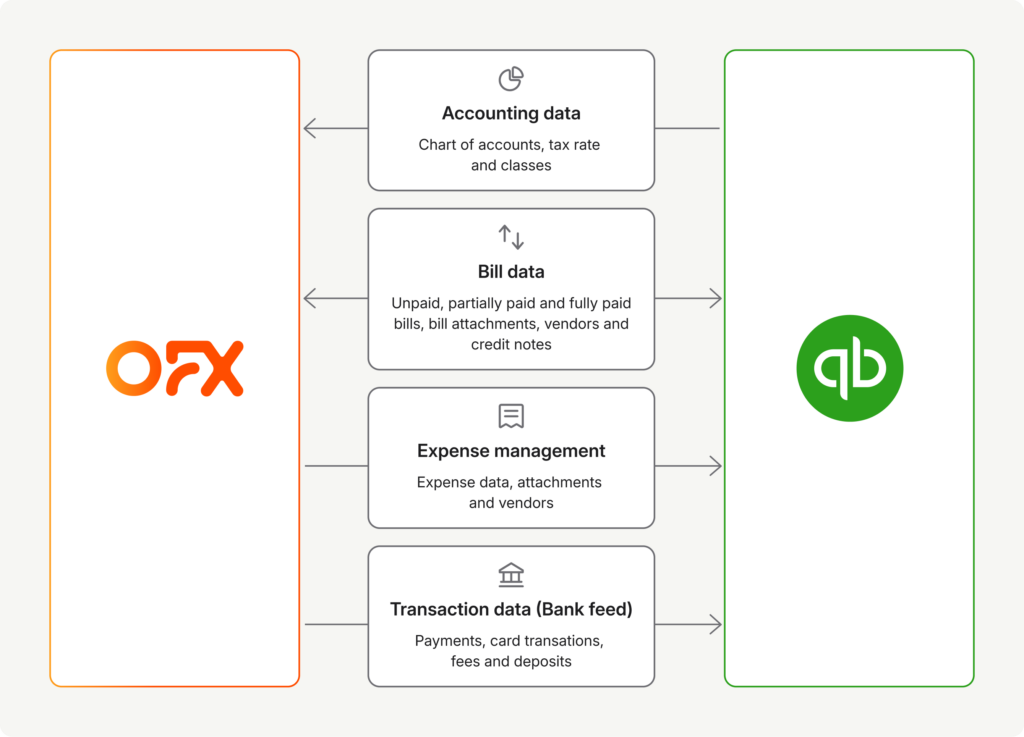
QuickBooks Online 2-way sync available on OFX Full Suite plan. Transaction data (Bank Feed) available on OFX Standard plan.
3 ways our integrations make business easy.
Enjoy faster, more accurate processing, less admin and easier reconciliation.


Smarter sync. Cleaner books.
Suddenly, it all syncs in real-time. Bill and supplier payments. Bill and expense attachments. Chart of accounts. Classes. It’s your total business solution to manual reconciliation work.
AI scans bills and receipts, pre-filling data across suppliers, amounts, tax, line items, classes, bank details and more. Recurring spend is matched to saved suppliers, applying supplier rules in real time.

Group, batch, pay, connect. Payment power that’s totally in sync.
Take control of payments with batch payment flexibility built to fit your workflow.
Close the books early this month.
How to connect QuickBooks Online to your Global Business Account
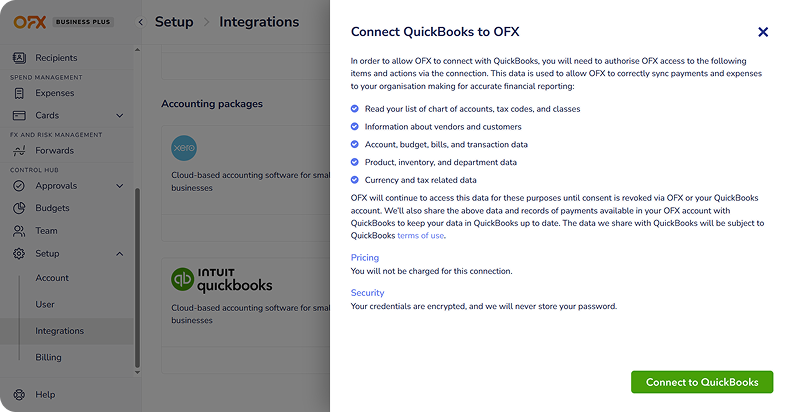
1. Go to Setup > Integrations.
In the platform, select ‘Setup’, then click ‘Integrations’ from the left-hand menu.
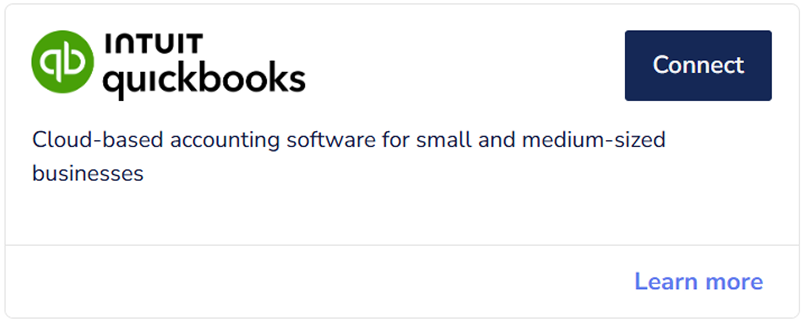
2. Select QuickBooks Online.
Click ‘Connect to QuickBooks’, review the permissions and click ‘Confirm’.
3. Log in to your QuickBooks Online account.
You’ll be taken to the Intuit QuickBooks Online log in page. Log in to your QuickBooks Online account and click ‘Connect’. You are now connected.
QuickBooks Online integration FAQs
Can I connect my QuickBooks Online account to my OFX Global Business Account?
Yes. You can easily connect QuickBooks Online to your account with the following steps:
- Log in to your OFX Global Business Account.
- Click on ‘Setup’ from the left sidebar menu.
- Click on ‘Integrations’ from the dropdown menu.
- Click toggle to connect to QuickBooks.
- Read the acknowledgment and confirm.
- Follow the on-screen instructions to authorise the integration with QuickBooks.
Can I link my card payments to my QuickBooks Online account?
Yes, you can. Sync your card expenses straight into QuickBooks Online and say goodbye to reconciliation bottlenecks. With real-time receipt capture in the OFX app, you can track team spending as it happens. No more missing documents and month-end surprises.
Do I need a specific QuickBooks Online plan to use the OFX integration?
OFX is designed to work seamlessly with QuickBooks Online, giving you access to robust features like paying bills in multiple currencies. To enjoy the full benefits of the integration, including effortless multi-currency handling, make sure your QuickBooks Online plan includes the multi-currency feature. This feature is only available on QuickBooks Online Essentials, Plus, and Advanced plans.
What is the difference between QuickBooks Online Bank Feed and 2-way sync?
Bank Feed
Your OFX transaction data (payments sent and funds received) flows automatically into QuickBooks Online. This one-way feed makes reconciling your accounts simple and stress-free, just like reviewing a regular bank statement, without the manual effort.
2-Way Sync
Take your integration further with two-way syncing. Approved bills, supplier details and your Chart of Accounts move seamlessly from QuickBooks Online to OFX. When you pay those bills in OFX, the updates flow right back, keeping your payables perfectly aligned and your books always up to date.
There’s no need to set them up separately. Connect OFX and QuickBooks Online once, and both the Bank Feed and 2-way sync are enabled to work together, creating a smooth, integrated workflow that saves time and reduces errors.
If I create a bill in QuickBooks Online, will it automatically appear in OFX for payment?
Once your OFX and QuickBooks Online accounts are successfully connected, any approved bill marked as ‘Awaiting Payment’ in QuickBooks Online will automatically appear in your OFX account, ready for payment. No extra steps needed.
Bills that are still in a ‘Draft’ or ‘Needs Review’ status won’t sync until they have been approved. This helps prevent double entry and keeps your accounts payable process smooth from bill creation all the way through payment and reconciliation.
How does OFX handle multi-currency transactions in QuickBooks Online?
No matter how many currencies you work with, OFX makes it simple. When you pay a foreign currency bill, say a EUR invoice from your USD account, OFX handles all the calculations for you. The payment automatically syncs back to QuickBooks Online, where it:
- Marks the original foreign currency bill as paid
- Records the exact FX rate applied
- Posts any gains or losses from currency conversion
This means your books stay accurate, reconciled, and up-to-date, without the manual calculations or workarounds for transactions in foreign currencies. Multi-currency accounting just became effortless.
How fast does OFX sync with QuickBooks Online?
Data flows almost instantly between OFX and QuickBooks Online. Approve a bill in QuickBooks Online, and it’s ready to pay in OFX within minutes. Make a payment in OFX, and QuickBooks Online updates automatically. This real-time, 2-way sync keeps your books accurate across both platforms, and frees you from manual data entry.
What if a transaction doesn’t sync to QuickBooks Online?
We make it easy to spot and understand why your transaction isn’t syncing. Your OFX account includes an integration status dashboard or sync log that shows all transactions and highlights any that failed, with clear reasons such as:
- Your vendor or customer is inactive in QuickBooks Online
- The account period is closed in QuickBooks Online
- The category mapping is missing or incorrect
This helps you quickly understand what needs attention. And if you ever need a hand, our support team is always ready to help. Contact us at business@ofx.com.
Can I connect my OFX Global Business Account to other accounting or Enterprise Resource Planning (ERP) platforms?
Yes. You can export data from your account as a CSV file and import it into your accounting platform. We’re always working to expand our integration capabilities and looking to add more platforms soon.



Trust earned daily.
Ready to win back time? See our integrations in action.
